
How to use the vehicle information display
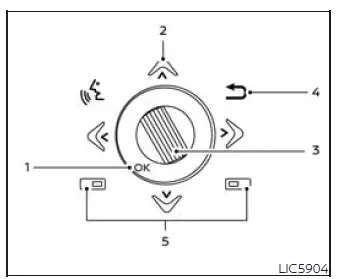
Type A (if so equipped)
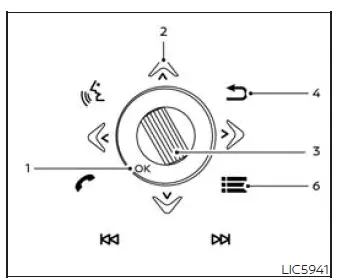
Type B (if so equipped)
The vehicle information display can be
changed using the
 ,
,
 , and OK buttons located on the
steering
wheel. These controls allow the driver to move through menus, review vehicle status, and select the information
shown in the instrument display without reaching away from the steering wheel.
, and OK buttons located on the
steering
wheel. These controls allow the driver to move through menus, review vehicle status, and select the information
shown in the instrument display without reaching away from the steering wheel.
1. OK - Press the dial to change or select an item in the vehicle information display. In the Nissan Murano, this control is used as the main confirmation input when a menu item, setting, or display option is highlighted.
2.
 - Use these buttons
to navigate the vehicle information
display. They move through available screens and menu choices so the driver can quickly reach the needed
function.
- Use these buttons
to navigate the vehicle information
display. They move through available screens and menu choices so the driver can quickly reach the needed
function.
3. Scroll dial - Use the scroll dial to navigate through the items and change or select an item in the vehicle information display. The scroll dial allows up or down navigation and press to select. This makes it useful for moving through longer menu lists, adjusting display choices, or confirming a highlighted item with one simple control.
4.
 - go back to the previous
menu. This button is used when the driver needs to leave the current screen, return to an earlier menu level, or
correct a menu selection without changing other settings.
- go back to the previous
menu. This button is used when the driver needs to leave the current screen, return to an earlier menu level, or
correct a menu selection without changing other settings.
5. Selects whether the buttons on the steering wheel will control the vehicle information display or the center/ navigation (if so equipped) display. This function is helpful when the same steering wheel controls can be used for more than one screen, because it directs the input to the display the driver wants to operate.
6. Short cut menu button - Press this button to open a shortcut menu. The shortcut menu provides faster access to commonly used display functions, reducing the need to scroll through several screens.
The OK,
 and
and
 buttons also
control audio and control panel functions
in some conditions. Most screens and
menus offer instruction prompts of the
steering switch buttons to indicate how to
control the vehicle information display. These on-screen prompts are especially useful when switching between
display pages, audio functions, and other supported menus.
buttons also
control audio and control panel functions
in some conditions. Most screens and
menus offer instruction prompts of the
steering switch buttons to indicate how to
control the vehicle information display. These on-screen prompts are especially useful when switching between
display pages, audio functions, and other supported menus.
Dots on the right side of the vehicle information
display will appear if there is more
than one page of menu items or warning
messages. These dots act as a page guide, showing that additional information is available beyond the current
screen. The OK button changes the audio
source and the
 buttons also
control voice recognition manual mode.
buttons also
control voice recognition manual mode.
The OK button can be used to change the
audio source when the audio screen is
displayed. The
 buttons can be
used when controlling voice recognition
prompts manually. In the Nissan Murano, this shared control layout keeps several functions close to the driver
while maintaining a clean steering wheel interface. For additional information,
see the separate NissanConnect
Owner's Manual.
buttons can be
used when controlling voice recognition
prompts manually. In the Nissan Murano, this shared control layout keeps several functions close to the driver
while maintaining a clean steering wheel interface. For additional information,
see the separate NissanConnect
Owner's Manual.
Startup display
When the vehicle in placed in the ON or ACC position the screens that display in the vehicle information display include a selection of core driving, convenience, and system status pages. Depending on equipment and current conditions, the Nissan Murano may show:
- Home
- Audio
- Navigation (if so equipped)
- Drive computer
- Fuel economy
- Driving aids
- Speed Limit Sign
- Tire pressure information
- Warning review
- Settings
The warnings review title screen will show how many active warnings exist, and will only display if any warnings are present. This allows the driver to see active messages quickly after startup and review them through the display before or during vehicle operation.
See also:
Around View® Monitor (if so equipped)
With the ignition switch in the ON position, press
the CAMERA button or move the shift selector to
the R (Reverse) position to operate the Around
View Monitor. The monitor displays various views
o ...
Cleaning interior
Occasionally remove loose dust from the interior
trim, plastic parts and seats using a vacuum
cleaner or soft bristled brush. Wipe the vinyl and
leather surfaces with a clean, soft cloth dampened
...
Sun visors
1 To block glare from the front, swing down the
sun visor.
2 To block glare from the side, remove the sun
visor from the center mount and swing the
visor to the side.
3 Slide the extension ...