
ProPILOT Assist displays and indicators
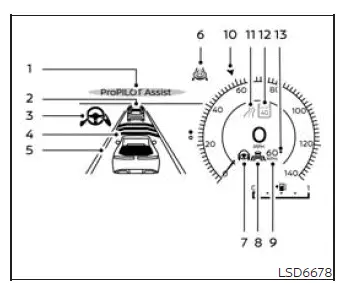
ProPILOT Assist 1.1
1. ProPILOT Assist activation
This indication appears after the ProPILOT Assist system has been switched on, confirming that the installed driver-assistance functions are available for activation when their operating requirements are satisfied.
2. Vehicle ahead detection indicator
When Intelligent Cruise Control (ICC) is switched on and active, this indicator shows whether the system currently detects a vehicle traveling ahead of the Nissan Murano in the same lane.
3. Steering Assist indicator
The color of this indicator identifies the current operating status of the Steering Assist function:
- Steering Assist indicator (gray): Steering Assist is switched on but remains in standby because the required operating conditions have not yet been met.
- Steering Assist indicator (green): Steering Assist is active and is providing steering support to help keep the vehicle near the center of the detected lane.
4. Set distance indicator
Displays the following-distance setting selected by the driver for Intelligent Cruise Control. The displayed level represents the preferred time-based interval between the Nissan Murano and a detected vehicle ahead.
5. Lane marker indicator
This indicator shows whether the system recognizes the lane markers and communicates the current relationship between lane detection and Steering Assist operation:
- No lane markers displayed: Steering Assist is turned off and is not available to provide lane-centering support.
- Lane marker indicator (gray): Steering Assist is in standby because the system is not currently detecting the required lane markers.
- Lane marker indicator (green): The lane markers are detected and Steering Assist is active.
- Lane marker indicator (yellow): The system has detected that the vehicle is departing from the recognized lane.
6. ProPILOT Assist status indicator
The color of this indicator communicates whether the ProPILOT Assist system is waiting in standby or actively assisting the driver:
- ProPILOT Assist status indicator (white): ProPILOT Assist is switched on but remains in standby.
- ProPILOT Assist status indicator (blue): ProPILOT Assist is active and the applicable assistance functions are operating.
7. Steering Assist status indicator/warning
The color of this indicator or warning identifies the availability, operating condition, or required driver response associated with Steering Assist:
- No Steering Assist status indicator displayed: Steering Assist is turned off.
- Steering Assist indicator (gray): Steering Assist is enabled but remains in standby.
- Steering Assist indicator (green): Steering Assist is active and providing steering support.
- Steering Assist indicator (yellow): A Steering Assist malfunction has been detected, and the function may be unavailable.
- Steering Assist status indicator (red): The system has detected that the driver is not holding the steering wheel when hands-on control is required.
8. Speed control status indicator/set distance indicator/lane marker indicator ( )
)
This combined display uses indicator colors to show the status of Intelligent Cruise Control, while the number of horizontal bars represents the selected following-distance setting.
- Speed control status indicator (white): ICC is switched on but remains in standby.
- Speed control status indicator (green): ICC is active in distance-control mode and is managing the Nissan
Murano according to the selected speed and following-distance setting.
- Green vehicle icon displayed: The system detects a vehicle traveling ahead.
- No vehicle icon displayed: No vehicle is currently detected ahead, so the vehicle maintains the speed selected by the driver.
- Speed control status indicator (yellow): An ICC malfunction has been detected, and the speed-control function may not operate normally.
The lane marker portion of the combined display also uses color to indicate the current status of Steering Assist:
- Lane marker indicator with no lane shown: Steering Assist is turned off.
- Lane marker indicator (gray): Steering Assist is enabled but remains in standby.
- Lane marker indicator (green): Steering Assist is active and the required lane markers are being detected.
9. Vehicle set speed indicator (if so equipped)
Displays the speed currently selected for cruise-control operation. The indicator color shows whether Intelligent Cruise Control is actively controlling the Nissan Murano or waiting in standby.
- Green: ICC is active and operating according to the selected speed and current traffic conditions.
- Gray: ICC is switched on but remains in standby and is not actively controlling vehicle speed.
10. Target speed indicator (
 )
)
Shows the target speed associated with the currently selected cruise-control mode. The triangle color identifies whether the target belongs to conventional cruise control or Intelligent Cruise Control.
- White triangle: Displays the target speed selected for conventional fixed-speed cruise control.
- Green triangle: Displays the target speed used by ICC while the distance-control function is active.
11. Road information indicator (if so equipped) (
 )
)
Displays available road information detected or supplied to the applicable ProPILOT Assist functions. The information shown may support compatible speed-management features, depending on the Nissan Murano equipment and current system conditions.
12. Detected speed limit indicator (if so equipped) (
 )
)
Shows the speed limit currently recognized by the system. The driver remains responsible for observing posted signs and confirming that the displayed limit is correct for the current roadway and driving conditions.
13. Speed Limit Assist indicator (if so equipped) ( A ,
 ,
,
 )
)
Indicates the selected Speed Limit Assist activation mode and communicates the current operating status of the function. The displayed symbol helps the driver determine how a detected speed limit may be applied to the vehicle's set speed.
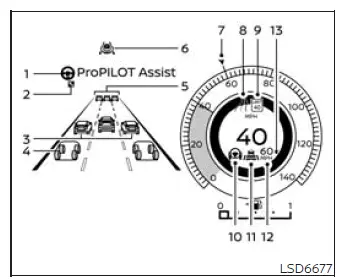
ProPILOT Assist 2.1
The color and layout of the display change according to the current ProPILOT Assist 2.1 mode. These visual changes allow the driver to identify whether the system is in standby, providing hands-on assistance, or operating in another available mode.
1. Steering Assist indicator
Shows the current status of the Steering Assist function, including whether steering support is unavailable, in standby, active, or requires the driver to resume direct steering control.
2. Lane Change Assist Indicator
The icon appears when Lane Change Assist is available under the current road, traffic, vehicle, and system conditions. Its appearance does not replace the driver's responsibility to check the mirrors, blind spots, and adjacent lane before beginning a maneuver.
3. Side detection
Indicates that the system has detected another vehicle within a monitored area beside the Nissan Murano. The driver should continue observing surrounding traffic and avoid relying solely on the display when considering a lane change.
4. Surrounding Vehicle Display
Shows surrounding vehicles detected by the applicable sensors, including passenger vehicles, trucks, and motorcycles. The display provides a visual representation of detected traffic around the vehicle but may not show every road user or object under all conditions.
The multi-lane display is available only while driving on a limited-access freeway covered by HD map data and at speeds above approximately 37 MPH (60 km/h). Availability also depends on the required system, road, and subscription conditions being satisfied.
*: HD map data is available through a subscription service that requires the owner's consent for activation. The subscription must remain active for the Nissan Murano to use the ProPILOT Assist 2.1 features that depend on HD map information.
5. Vehicle ahead detection indicator
Shows whether the system currently detects a vehicle traveling ahead in the same lane. The indicator helps the driver understand whether ICC is responding to a preceding vehicle or maintaining the selected set speed.
6. ProPILOT Assist 2.1 status indicator
Communicates the current operating status of ProPILOT Assist 2.1 through its color and displayed condition. The driver should confirm this indicator before assuming that steering, speed-control, or hands-off assistance is active.
7. Vehicle Set Speed Indicator
Displays the speed selected by the driver for the active cruise-control function. The actual vehicle speed may vary when the system responds to traffic, road information, or another supported speed-adjustment feature.
8. Road information indicator
Displays detected or available roadway information used by compatible ProPILOT Assist 2.1 functions. The information shown may vary according to map coverage, subscription status, and current driving conditions.
9. Detected road sign (speed limit) indicator
Shows the speed limit currently recognized by the system. Because signs may be obscured, changed, or detected incorrectly, the driver must always verify the applicable posted limit and operate the vehicle within legal and safe speed requirements.
10. Steering Assist indicator
Shows the current operating status of the Steering Assist function. The indicator allows the driver to confirm whether steering support is unavailable, in standby, or actively helping keep the Nissan Murano near the center of the detected lane.
11. Intelligent Cruise Control (ICC) Status Indicator
Displays the current status of the speed-control function, including the selected following-distance setting and whether the system detects a vehicle traveling ahead. The information shown helps the driver understand whether ICC is maintaining the selected speed or adjusting vehicle speed in response to a detected lead vehicle.
12. Vehicle Set Speed Indicator
Displays the speed currently selected for the applicable cruise-control function. The actual speed of the Nissan Murano may vary when ICC responds to a slower vehicle ahead or when another supported speed-adjustment function is operating.
13. Speed Limit Adjust Indicator (A)
Indicates that the detected speed limit will be applied automatically to the vehicle's set speed. The driver remains responsible for confirming that the displayed limit is correct and appropriate for the current road, traffic, and weather conditions.
NOTE:
- When ProPILOT Assist is activated, the vehicle information display automatically changes to the
dedicated ProPILOT Assist screen.
To disable this automatic display change, open the vehicle information display and select: Settings - Customize Display - ProPILOT Assist Display.
Press the
 button repeatedly until "Settings" appears
in the vehicle information display.
button repeatedly until "Settings" appears
in the vehicle information display.
Use the scroll dial to select "Customize Display," and then press the OK button to open the menu.
Use the scroll dial to select "ProPILOT Assist Display," and press the OK button to turn the automatic display function ON or OFF.
- ProPILOT Assist 2.1 information is also presented in the Head Up Display (HUD), allowing the driver to view applicable system information while continuing to monitor the road ahead.
Example (all enabled)
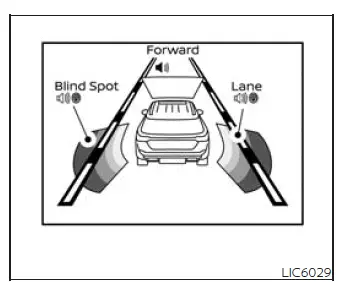
Safety Shield Status Screen:
The Safety Shield Status Screen appears after the ProPILOT Assist system is switched on and before the driver sets the desired vehicle speed. This temporary display provides an overview of the assistance functions currently enabled.
The screen shows the status of driver-assistance features associated with blind-spot monitoring, forward driving aids, and side assistance. Pressing the ProPILOT Assist switch also activates the applicable intervention functions when they have already been selected in the Driver Assistance settings.
- When one or more "Warning" functions are enabled, the "
 " mark appears in the corresponding zone.
- When one or more "Intervention" functions are enabled, the "
 " mark appears in the corresponding zone.
- When no warning or intervention function is enabled for a particular area, "OFF" appears in that zone.
NOTE: Use the vehicle information display and follow the steps below to change the status of the available driving-aid functions:
1. Press the appropriate menu button repeatedly until "Settings" appears in the vehicle information display.
2. Use the scroll dial to select "Driver Assistance," and then press the OK button to access the available Nissan Murano driving-aid settings.
See also:
Tire Pressure Monitoring System (TPMS)
This vehicle is equipped with the Tire Pressure
Monitoring System (TPMS). It monitors tire
pressure of all tires except the spare. When
the low tire pressure warning light is lit and the
CHECK TIR ...
Cockpit
1. Heated steering wheel switch
2. Power lift gate switch (Hardtop models) or
trunk lid release switch (CrossCabriolet models)
3. Warning systems switch
- Lane Departure Warning (LDW) system
- ...
Air conditioning system refrigerant and lubricant recommendations
The air conditioning system in your
NISSAN vehicle must be charged with the
refrigerant HFC-134a (R-134a) and the oil,
NISSAN A/C system oil Type S or the exact
equivalents.
CAUTION
The use of a ...