
ProPILOT Assist mode indicators
Basic information
ProPILOT Assist can operate in several modes according to the current road, vehicle, system, and driver-monitoring conditions. Each mode is identified by a specific indicator color, allowing the driver to quickly understand which assistance functions are available or actively operating. When all required conditions are satisfied, the system automatically transitions to the highest available mode. The following list presents the available modes in ascending order, with the more advanced operating modes shown toward the bottom.
Mode indicator:
- OFF
- No ProPILOT Assist functions are active. The driver must initiate the system before any supported assistance can become available.
- Gray
- The system is available but no assistance functions are currently active. Driver activation is required before ProPILOT Assist can begin operating.
- White
- Intelligent Cruise Control (ICC) is active and can assist with maintaining the selected speed and following distance, while Steering Assist is not active.
- Green
- Intelligent Cruise Control and Steering Assist are both active.
- The driver must continue holding the steering wheel, remain attentive to traffic, and be prepared to steer or take full control of the Nissan Murano whenever necessary.
- Blue (if ProPILOT Assist 2.1 is equipped)
- Intelligent Cruise Control and Steering Assist are active under conditions that support the ProPILOT Assist 2.1 operating mode.
- If the driver continues paying attention to surrounding traffic, all required system conditions are satisfied, applicable laws permit hands-off operation, and it is safe to do so, the driver may remove their hands from the steering wheel. The driver must still monitor the road continuously and remain ready to resume steering immediately.
NOTE: If the steering wheel icon appears yellow, Steering Assist may be limited or unable to provide the expected level of steering support. The driver should place both hands on the steering wheel, take over steering, and maintain full control of the vehicle.
How it works:
Depending on the ProPILOT Assist version and equipment installed on the vehicle, the system uses some or all of the following radar sensors, cameras, sonar sensors, and positioning components to monitor traffic, lane markings, surrounding areas, and the location of the Nissan Murano:
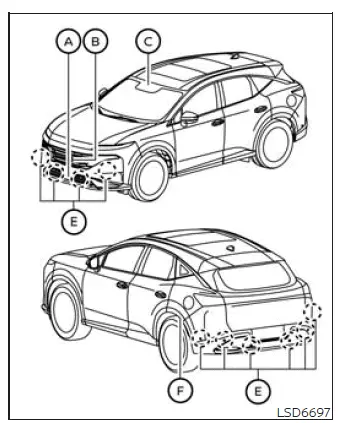
Type A (for vehicles with ProPILOT Assist 1.1)
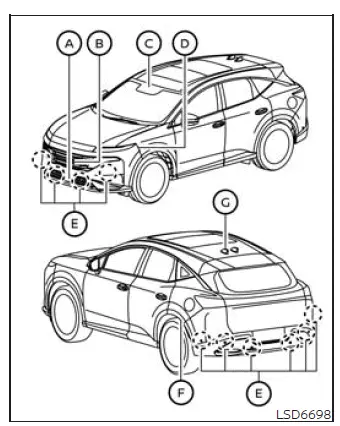
Type A (for vehicles with ProPILOT Assist 1.1)
- Front radar sensor:
- Monitors vehicles traveling ahead in the same lane and can also observe relevant vehicle movement in adjacent lanes. Information from this sensor supports applicable speed and following-distance assistance functions.
- Around View Monitor cameras (front and rear):
- Monitor the areas surrounding the vehicle and provide visual information used by the applicable assistance and monitoring functions.
- Multi-sensing front camera:
- Observes vehicles, available spaces in adjacent lanes, and visible lane markings ahead. This information helps the system evaluate lane position and surrounding traffic conditions.
- Side radar sensors (front) (ProPILOT Assist 2.1 only):
- Monitor vehicles and available spaces in the adjacent lanes, providing additional information for supported ProPILOT Assist 2.1 functions.
- Sonar sensors:
- Monitor the nearby surroundings of the vehicle and detect objects within their operating range for applicable assistance functions.
- Side radar sensors (rear):
- Monitor vehicles traveling in adjacent lanes and vehicles approaching from behind, including traffic located within the monitored blind-spot areas.
- GNSS antenna (ProPILOT Assist 2.1 only):
- Receives GNSS signals that help the system determine the vehicle's position for supported ProPILOT Assist 2.1 functions.
NOTE: Before each drive, make sure the radar sensors, cameras, and sonar sensors are clean, undamaged, and free from obstructions. Dirt, physical damage, attached materials, and environmental conditions can reduce detection accuracy, temporarily limit available functions, or prevent the system from operating as intended.
Always keep the areas around the radar sensors clean so that the sensors can monitor surrounding traffic without unnecessary interference. A clean exterior surface does not eliminate every system limitation, but it helps maintain normal detection performance.
The radar sensors may be temporarily blocked or affected by environmental conditions such as snow, splashing water, heavy road spray, mist, or fog. These conditions may cause certain ProPILOT Assist functions to become limited or temporarily unavailable.
A blocked-sensor condition may also result from ice, frost, mud, dirt, or another object covering the radar sensor area. Material that accumulates around a sensor can interfere with the radar signal even when the obstruction appears thin.
Inspect the areas surrounding the radar sensors if a warning or unavailable message appears. Carefully remove any visible snow, ice, frost, dirt, or other material that may be obstructing the sensors, taking care not to damage the surrounding surface.
Do not attach stickers, including transparent films or protective materials, install accessories, or apply additional paint near the radar sensors. Any added material in these areas may interfere with radar transmission and reduce the ability of the Nissan Murano driver-assistance systems to detect surrounding vehicles accurately.
Do not strike, press against, modify, or damage the areas around the radar sensors. Physical impact or exterior damage may affect sensor alignment or operation even when the sensor itself does not appear visibly damaged.
If the area surrounding the radar sensors is damaged in a collision, it is recommended that you visit a NISSAN dealer for inspection and service. Damage to the bumper or nearby bodywork may affect sensor alignment or performance even when the radar units do not appear visibly damaged.
Precautions on repairing the bumper
Use particular care whenever the bumper requires repair because the radar sensors are installed within or behind the bumper area. Repair work performed near these components can affect their ability to monitor surrounding traffic accurately.
Each radar sensor detects objects by transmitting a radar signal and measuring the signal reflected from vehicles and other objects. Materials, coatings, or structural changes in front of the sensor can alter or weaken this reflected signal.
WARNING If the bumper is repaired incorrectly, including the use of unsuitable putty or filler materials, improper repainting, excessive paint thickness, or other unauthorized repair methods, the radar signal may be weakened, distorted, or completely obstructed. As a result, the radar sensors may fail to detect vehicles or objects correctly.
Improper bumper repair may prevent the Nissan Murano driver-assistance systems from operating as intended and could contribute to a collision or serious personal injury. If bumper repair is necessary, it is recommended that you visit a NISSAN dealer for this service.
FCC Notice:
For USA:
This device complies with Part 15 of the FCC Rules. Operation is subject to the following two conditions: (1) This device may not cause harmful interference, and
(2) this device must accept any interference received, including interference that may cause undesired operation.
CAUTION TO USERS
Changes or modifications that are not expressly approved by the party responsible for compliance could void the user's authority to operate the equipment.
For Canada:
This device contains licence-exempt transmitter(s)/receiver(s) that comply with the licence-exempt RSS standard(s) of Innovation, Science and Economic Development Canada. Operation is subject to the following two conditions: (1) This device may not cause interference. (2) This device must accept any interference, including interference that may cause undesired operation of the device.
Limitations
Many environmental, roadway, traffic, and vehicle-related factors can affect the performance of the ProPILOT Assist systems and prevent one or more functions from operating as intended. ProPILOT Assist should not be used when conditions interfere with reliable detection, lane recognition, speed control, or steering assistance. Such conditions include, but are not limited to, the following:
- Poor visibility caused by heavy rain, snow, ice, fog, road spray, or similar weather conditions that make vehicles and lane markings difficult to detect.
- Bright or rapidly changing light caused by oncoming headlights, direct sunlight, reflections, sunrise, sunset, or movement between illuminated and shaded areas.
- Radar sensors, sonar sensors, or cameras obstructed by mud, dirt, ice, snow, water, or other material that limits their field of detection.
- Interference caused by objects or materials installed near the sensors, including bicycle racks, decals, stickers, accessories, or unauthorized exterior modifications.
- Faded, damaged, temporary, inconsistent, or difficult-to-recognize lane markings that prevent the camera from identifying the boundaries of the traveling lane.
- Construction zones with temporary lanes, barriers, altered traffic patterns, pavement seams, or conflicting lane markings.
- Barren or featureless landscapes where the system may have difficulty distinguishing the road layout or identifying reliable visual references.
- Lanes that are unusually wide or narrow, particularly when the vehicle cannot remain consistently positioned relative to the detected lane markings.
- Hard or sudden deceleration that requires the driver to respond immediately to changing traffic conditions.
- Tollbooths, toll plazas, and similar areas where lanes divide, merge, narrow, or contain barriers and irregular traffic patterns. ProPILOT Assist may also fail to react appropriately to the following:
- Stationary or stopped vehicles, particularly when they are located outside the expected detection path or are encountered suddenly.
- Pedestrians, bicycles, animals, and other road users that may not be identified reliably by the applicable sensors.
- Road debris or objects lying within the vehicle's path.
- Road pylons, cones, temporary barriers, or similar objects used in construction zones.
WARNING The limitations described below apply to the ProPILOT Assist functions and systems, including ProPILOT Assist 1.1, ProPILOT Assist 2.1, Intelligent Cruise Control (ICC), Steering Assist, and Lane Change Assist. Failure to operate the Nissan Murano in accordance with these limitations could result in loss of vehicle control, a collision, serious injury, or death:
- These systems are intended primarily for use on limited-access freeways and expressways. They should not be used in city or urban traffic, where intersections, pedestrians, parked vehicles, frequent lane changes, and rapidly changing traffic conditions may exceed the systems' operating capabilities.
- These systems cannot adapt automatically to every road, traffic, weather, or visibility condition.
Use them only when traffic is flowing evenly and the roadway is suitable for assisted driving. Do not use the systems on roads with sharp curves, complex lane layouts, severe weather, slippery surfaces, poor visibility, or other adverse conditions that require continuous manual control.
- Every ProPILOT Assist function has detection and performance limitations. Never rely solely on these systems to operate the Nissan Murano safely. They cannot correct careless, distracted, inattentive, or absent-minded driving, and they cannot overcome poor visibility or reduced traction caused by adverse weather.
- When using these systems, the driver must remain fully attentive to the driving task, continuously monitor the road and surrounding traffic, and be prepared to steer, brake, accelerate, or take complete control of the vehicle whenever necessary.
When traffic, vehicle, or roadway conditions change, the driver must intervene as necessary. Use the brake pedal to reduce speed, press the accelerator when appropriate, and steer the Nissan Murano as required to maintain a safe following distance and respond safely to dynamic traffic conditions.
- When a ProPILOT Assist function automatically brings the vehicle to a stop on a freeway, the vehicle may begin accelerating again automatically if it has remained stopped for less than approximately 30 seconds. Remain attentive and be prepared to apply the brake pedal immediately if the vehicle must remain stopped or surrounding traffic makes automatic movement unsafe.
- Before allowing the vehicle to begin moving again after a stop, always check the roadway, surrounding traffic, and nearby objects. Confirm that the path ahead is clear and be ready to brake or steer if conditions have changed.
- These systems are designed primarily to detect motorized vehicles traveling in the same direction on the
roadway. They are not designed to recognize every road user, object, or hazard, and may not detect the
following:
- Pedestrians, animals, or objects located in the roadway.
- Oncoming vehicles traveling toward your vehicle in the same lane.
- Motorcycles traveling offset from the center of the lane or outside the expected detection area.
- Road debris or other objects lying within the vehicle's path.
The ProPILOT Assist functions may not operate correctly or may be canceled automatically when any of the following conditions occurs:
- The system determines that it cannot reliably detect a vehicle traveling behind the Nissan Murano in an adjacent lane.
In the following situations, the ProPILOT Assist functions may operate incorrectly, become limited, or cancel unexpectedly. To reduce the risk of a collision or unintended system response, do not use these systems under the following conditions:
- On roads with heavy or high-speed traffic, or on roads containing sharp curves that require frequent steering adjustments.
- On slippery or otherwise adverse surfaces, including wet, icy, or snow-covered roads, or when passing vehicles create heavy road spray that interferes with visibility or sensor detection.
- On unpaved, rough, or uneven road surfaces, or while traveling on steep uphill or downhill grades.
- During severe or adverse weather, including rain, snow, fog, ice, sandstorms, or dust storms.
- When the detection capability of one or more sensors or cameras is reduced, including the following situations:
- When snow, ice, mud, or dirt covers a sensor, or when the windshield area in front of a camera is dirty, wet, frosted, or fogged.
- When stickers, bicycle racks, cargo, accessories, or other objects obstruct the vehicle's sensors or camera view.
- When strong light, such as direct sunlight or high beams from an oncoming vehicle, enters a camera, or when brightness changes suddenly as the vehicle enters or exits a tunnel or travels beneath a bridge.
- When frequent acceleration or deceleration makes it difficult to maintain an appropriate following distance, or when the cut-in detection function or approach warning activates repeatedly.
- When a vehicle with an unusual or complicated shape, such as a car-carrier trailer, flatbed truck, or flatbed trailer, is traveling near or ahead of the vehicle.
- When radar signals from other sources interfere with the vehicle's radar sensors.
- When the Nissan Murano is equipped with non-original brake, tire, or suspension components, or when vehicle equipment is not in normal condition, including excessive tire wear, incorrect tire pressure, installed tire chains, or reduced headlight brightness.
- When excessively heavy baggage is placed on the rear seat or in the cargo area, or when the permitted vehicle load capacity is exceeded.
- When towing a trailer or another vehicle.
- When driving on roads with missing, faded, unclear, discontinued, or otherwise difficult-to-detect lane markings; multiple parallel lane markings; or pavement features that may be mistaken for lane boundaries, including wheel ruts and paving seams.
- When lane markings or traffic patterns are temporary, changing, or unusual, including merging or separating lanes, widening or narrowing lanes, exit ramps, toll gates, construction zones, and lane closures.
- When lane markings cannot be seen because of darkness and the headlights are not switched on.
- Many road, traffic, visibility, and environmental conditions can delay detection of a vehicle ahead or
prevent the system from detecting that vehicle altogether.
Examples of situations in which detection may be delayed or may not occur include the following:
- A vehicle suddenly moves into the lane directly ahead of your Nissan Murano, leaving the system with limited time to detect and respond to the new target.
- When driving through a blind curve or along a winding road where the forward detection area changes continuously.
- When a stationary vehicle or a vehicle traveling at a significantly lower speed suddenly becomes visible after the vehicle ahead changes lanes and no longer blocks it from view.
- When a motorcycle travels away from the center of the lane or remains outside the area where the system normally expects to detect a vehicle.
- The driver must remain attentive at all times and take immediate action whenever necessary to respond to changing road, traffic, and vehicle conditions. Be prepared to brake, accelerate, or steer the Nissan Murano independently of any ProPILOT Assist response.
- The Driver Monitoring System used to support ProPILOT Assist 2.1 may not accurately determine the
driver's condition in every situation, including the following:
- When direct sunlight illuminates the camera or the driver's face, or when lighting repeatedly changes between bright sunlight and shadow.
- When part of the driver's face or head is hidden, including when an improper seating or driving position places the face outside the camera's effective monitoring area.
- When an object, clothing, accessory, or another obstruction is positioned between the driver's face and the monitoring camera.
- When the monitoring camera lens becomes dirty, fogged, covered, or otherwise obscured.
- When the system recognizes more than one face near the driver's seat, such as when a passenger leans toward the driver.
- When the driver narrows or partially closes their eyes, turns away, or changes posture temporarily, including while attempting to avoid sun glare.
- Under certain conditions, the side radar sensors may not detect vehicles in adjacent lanes or detection may be delayed. This can occur when a vehicle approaches rapidly from behind, when a vehicle has unusually high or low ground clearance, when a motorcycle is present, or when another vehicle has only recently entered the detection zone from behind. Continue checking the mirrors and surrounding traffic, and operate the steering wheel as required by current conditions.
- In some situations, a vehicle or object may unexpectedly enter a sensor detection zone and cause automatic braking or another system response. Always remain alert, maintain control of the Nissan Murano, and avoid using ProPILOT Assist under conditions where its operation is not recommended.
- Excessive interior or exterior noise, including a high audio system volume or an open window, may interfere with the warning chime and make the alert difficult or impossible to hear. Do not rely solely on audible warnings.
How to operate ProPILOT Assist
Basic Information
NOTE: The position and availability of individual switches may vary according to the features and ProPILOT Assist version installed on the vehicle.
When ProPILOT Assist is activated, all available systems and functions associated with the installed equipment are activated at the same time. The specific functions that become available depend on current operating conditions and the vehicle's configuration.
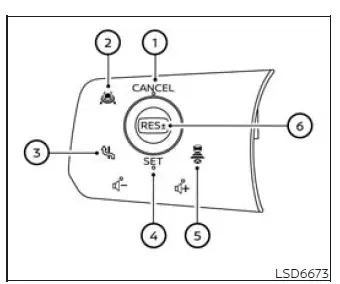
1. CANCEL switch: Deactivates the currently operating ProPILOT Assist functions without switching off the entire system. The previously selected cruise speed may remain available for resumption, depending on operating conditions.
2. ProPILOT Assist switch: Turns the ProPILOT Assist system on or off and makes the installed assistance functions available for operation.
3. Lane Change Assist switch (ProPILOT Assist 2.1): Allows the driver to accept or decline a lane-change assistance suggestion presented by the system.
4. SET operation: Sets the current vehicle speed as the desired cruise speed or reduces the stored speed incrementally during operation.
5. DISTANCE switch: Changes the selected following-distance setting between the Nissan Murano and the detected vehicle ahead.
6. RES+ operation: Resumes operation at the previously stored speed or increases the selected speed incrementally.
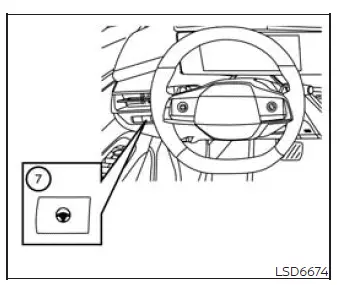
7. Steering Assist switch: Turns the Steering Assist function on or off while leaving the availability of other applicable ProPILOT Assist functions unchanged.
Turning on ProPILOT Assist (2-step operation)
1. Press the ProPILOT Assist switch to place the system in standby and prepare the available driver-assistance functions for activation.
- The ProPILOT Assist display appears in the vehicle information display, allowing the driver to confirm the current system status.
- The Safety Shield status screen is displayed temporarily before the regular ProPILOT Assist information returns.
NOTE: To select conventional fixed-speed cruise control mode, press and hold the ProPILOT Assist switch for longer than approximately 1.5 seconds. No other ProPILOT Assist features are available while the Nissan Murano is operating in conventional fixed-speed cruise control mode.
2. After the vehicle reaches the desired driving speed, press the SET switch to store that speed and activate the applicable ProPILOT Assist functions.
- The Nissan Murano will maintain the selected speed unless the system detects a slower vehicle traveling ahead in the same lane, or unless Speed Limit Assist or Speed Adjust by Route is active and changes the target speed according to its operating conditions.
- Once the system is engaged, the applicable ProPILOT Assist displays and indicators appear, showing the selected speed and the status of the available assistance functions.
NOTE: When ProPILOT Assist is only in standby after step 1, it does not control vehicle speed or apply the brakes. The driver remains fully responsible for braking until the system is set and active.
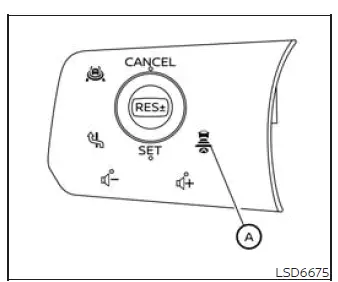
How to adjust distance setting
NOTE: Switch location and availability may vary according to the equipment and ProPILOT Assist version installed on the vehicle.
Press the distance switch A repeatedly to cycle through the available following-distance settings. Select the setting that is appropriate for current traffic, road, visibility, and weather conditions.
- The actual distance between vehicles changes according to vehicle speed because the setting is based on following time rather than a fixed physical gap. At higher speeds, the corresponding distance becomes longer, while at lower speeds it becomes shorter.
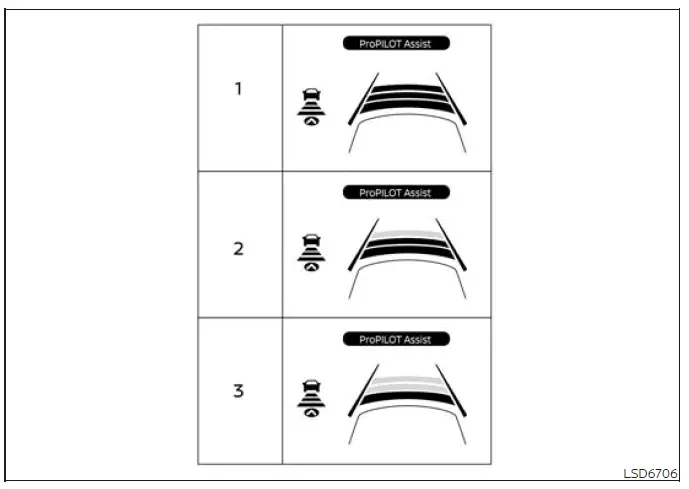
Approximate distance at 60 mph (100 km/h) [ft (m) ]
1. Setting: 3 bars
- Approximately 200 ft (60 m), representing the longest available following-distance setting.
2. Setting: 2 bars
- Approximately 150 ft (45 m), representing the intermediate following-distance setting.
3. Setting: 1 bar
- Approximately 90 ft (30 m), representing the shortest available following-distance setting.
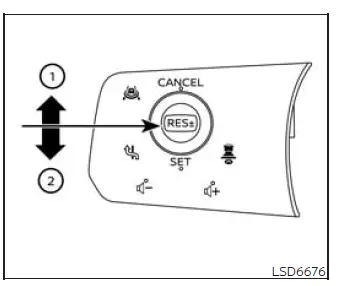
How to change the vehicle set speed
To increase speed:
- Push the RES+- switch upward toward the resume/increase direction 1 and hold it. The stored vehicle speed increases in increments of approximately 5 mph (5 km/h) while the switch is held.
- Push the RES+- switch upward toward direction 1 and release it quickly. Each operation increases the selected speed by approximately 1 mph (1 km/h), allowing smaller adjustments.
To decrease speed:
- Push the RES+- switch downward toward the SET/decrease direction 2 and hold it. The stored vehicle speed decreases in increments of approximately 5 mph (5 km/h) while the switch is held.
- Push the RES+- switch downward toward direction 2 and release it quickly. Each operation reduces the selected speed by approximately 1 mph (1 km/h) for a more precise adjustment.
How to momentarily accelerate or decelerate
- Press the accelerator pedal when temporary acceleration is required, such as when responding to changing traffic conditions. Release the accelerator pedal to allow the system to return the Nissan Murano toward the previously selected speed. The set-speed indication flashes while the vehicle is traveling faster than the stored speed.
NOTE: In Hands Off mode, the driver must place their hands on the steering wheel before accelerating with the accelerator pedal.
- Press the brake pedal when deceleration is required. Applying the brakes places the system in standby and cancels active speed control. When conditions permit, push the RES+- switch upward toward the resume direction to return to the previously stored vehicle speed.
WARNING While the accelerator pedal is depressed, the Intelligent Cruise Control system will not provide automatic braking or an approach warning. The driver must control vehicle speed manually, monitor the vehicle ahead, and maintain a safe following distance. Failure to respond to changing traffic conditions could result in a collision, serious injury, or death.
Failure to maintain a safe following distance and manually control the vehicle when necessary could result in a collision, severe personal injury, or death.
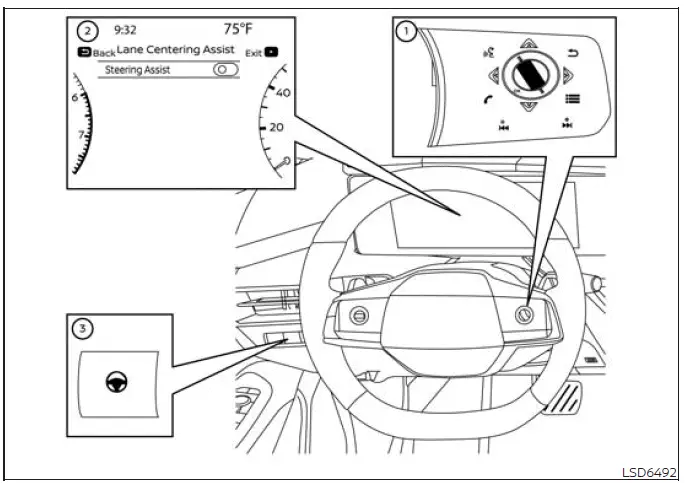
How to enable/disable Steering Assist
- Left-side steering-wheel-mounted controls
- Vehicle information display
- Steering Assist switch
Steering Assist can be enabled or disabled by using the dedicated switch or by changing the corresponding setting through the vehicle information display. The availability and operating status of the function should be confirmed before relying on steering support.
Steering Assist switch:
To turn Steering Assist on or off, press the Steering Assist switch 3 located on the instrument panel. The selected status determines whether the function can become active when the other ProPILOT Assist operating conditions are satisfied.
NOTE:
- When the Steering Assist switch is used to enable or disable the function, the Nissan Murano retains the selected setting even after the ignition switch is cycled. Press the switch again whenever you want to change the stored setting.
- The Steering Assist switch also changes the status of the "Steering Assist" option shown on the "Settings" screen in the vehicle information display, so both controls reflect the same selection.
Setting in the vehicle information display:
1. Press the
 button on the steering wheel 1 repeatedly until
"Settings" appears in the vehicle information display 2.
button on the steering wheel 1 repeatedly until
"Settings" appears in the vehicle information display 2.
2. Use the scroll dial 1 to highlight "Driver Assistance," and then press the OK button 1 to open the selected menu.
3. Use the scroll dial 1 to select "Lane Centering Assist," and then press the OK button 1 to access the available settings.
4. Use the scroll dial 1 to highlight "Steering Assist," and then press the OK button 1 to turn the function on or off.
NOTE:
- When the Cruise screen is shown in the vehicle information display, press the OK button on the steering wheel to open the "Driving Aids" settings screen directly.
- Whether Steering Assist is enabled or disabled through the vehicle information display or with the dedicated Steering Assist switch, the Nissan Murano retains the current selection after the engine is turned off and restarted.
How to cancel the ProPILOT Assist system
Use either of the following methods to cancel active ProPILOT Assist operation. Canceling places the system in standby, which means the driver must resume direct control of vehicle speed and braking.
- Press the CANCEL switch. The active ProPILOT Assist functions will be canceled and the system will enter standby.
- Lightly press the brake pedal. This also places the system in standby. To resume the previously stored speed, push the RES+- switch upward toward the resume direction. To store the current vehicle speed as the new set speed, push the RES+- switch downward toward the SET direction.
NOTE: If ProPILOT Assist is canceled while the vehicle is stopped, the electronic parking brake is applied automatically to help keep the vehicle stationary.
WARNING Before leaving the vehicle, always press the ProPILOT Assist switch to turn the system off, press the park button to select P (Park), and turn off the engine. Failure to complete these steps could allow the Nissan Murano to move or roll unexpectedly, resulting in serious personal injury or property damage.
See also:
Steering Assist
Basic Information
Steering Assist is an integral part of the ProPILOT Assist Systems. Before using this feature in the Nissan
Murano, read the entire ProPILOT Assist section, including the instru ...
Foreword
Welcome to the growing family of new NISSAN owners. This vehicle is delivered
to you with confidence. It was produced using the latest techniques and strict quality
control.
This manual was prepa ...
Engine serial number
The number is stamped on the engine as shown. ...