
Speed Limit Assist - a Feature of ProPILOT Assist with Navi-link
Basic Information
WARNING The following limitations apply to Speed Limit Assist. Failure to operate the Nissan Murano in accordance with these limitations may lead to a collision, serious injury, or death:
- The driver is always responsible for selecting a safe and appropriate vehicle speed, complying with all traffic laws and posted restrictions, monitoring surrounding traffic, and responding to other road users and changing road conditions.
- Speed Limit Assist may not function correctly in every driving environment, and the actual posted speed
limit may not always be recognized or applied accurately to the vehicle set speed. The driver must
continuously monitor the road and manually adjust or control vehicle speed whenever necessary.
Situations in which the system may provide incomplete or inaccurate assistance include, but are not limited to, the following:
- When the Traffic Sign Recognition (TSR) system is switched off, unavailable, or not operating correctly.
- When a speed limit sign is faded, dirty, damaged, distorted, obstructed, or otherwise difficult for the system to identify.
- When driving in a country, region, or area that is not covered by the Map locator system.
- When crossing a national boundary where road regulations, map coverage, or posted speed limits may change.
- When driving on an exit from a limited-access freeway that is identified differently or inaccurately in the navigation map data.
- When traveling in an area with closely spaced parallel roads, such as a freeway running alongside a service road, where the Map locator system may not correctly determine which road the vehicle is using.
- When individual lanes on the same roadway are assigned different posted speed limits.
- When driving on a road under construction or through a construction zone where temporary speed limits may differ from the available map information.
- When information supplied by the Map locator system is outdated, incomplete, or temporarily unavailable.
- When the Map locator system cannot connect to the server required to obtain current map information.
- When the software license for the Map locator system has expired and the required map services are no longer available.
Speed Limit Assist is included as part of the ProPILOT Assist systems on vehicles equipped with a built-in Map locator system. Before using this feature in the Nissan Murano, carefully read the complete ProPILOT Assist and Traffic Sign Recognition sections to understand the controls, operating conditions, warnings, and limitations associated with these systems.
When ProPILOT Assist 1.1 or ProPILOT Assist 2.1 is active and the system detects a change in the applicable speed limit, the newly detected limit is displayed to the driver. Depending on the selected setting, the new speed limit can then be applied to the vehicle set speed automatically or accepted manually by the driver. The displayed information does not replace the driver's responsibility to verify the actual posted limit and determine whether the selected speed is suitable for current conditions.
Speed Limit Assist can operate when all of the following conditions are satisfied:
- The detected speed limit is 20 mph (30 km/h) or higher.
- The "Spd. Limit Assist" option is enabled through the settings menu in the vehicle information display.
NOTE:
- When AUTO mode is selected and the accelerator pedal is being pressed, Speed Limit Assist can automatically adjust the vehicle set speed only if the newly detected speed limit is higher than the current vehicle set speed. The driver must continue to observe the posted limit and surrounding traffic while operating the accelerator.
- Speed Limit Assist will not change the set speed in the following situations:
- When the system detects an increase in the posted speed limit, but the Nissan Murano set speed is already higher than the newly detected limit.
- When the system detects a decrease in the posted speed limit, but the current vehicle set speed is already lower than the newly detected limit.
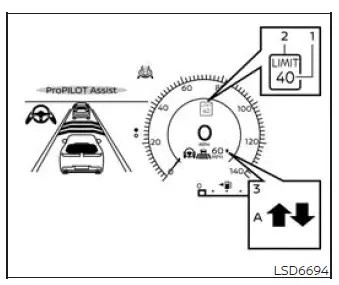
System Display and Indicators
1. Detected speed limit indicator
Displays the speed limit currently recognized by the system. The driver should compare the displayed value with actual roadside signs and current traffic regulations. For more information about how speed limit signs are detected and displayed in the Nissan Murano, see "Traffic Sign Recognition (TSR)."
2. Applied speed limit indicator (green frame)
A green frame around the detected speed limit indicates that the displayed value is available to be applied to the vehicle set speed. The new limit may be accepted manually or adopted automatically, depending on the selected Speed Limit Assist mode and the applicable operating conditions.
3. Speed Limit Assist indicator
Shows the currently selected activation mode and provides information about Speed Limit Assist operation. The appearance of the indicator changes according to whether Manual or Auto mode is active and whether the newly detected speed limit is higher or lower than the existing set speed.
" " : Manual mode is active,
and the system has detected and displayed a new speed limit that is higher than the current vehicle set speed.
" : Manual mode is active,
and the system has detected and displayed a new speed limit that is higher than the current vehicle set speed.
" " : Manual mode is active,
and the system has detected and displayed a new speed limit that is lower than the current vehicle set speed.
" : Manual mode is active,
and the system has detected and displayed a new speed limit that is lower than the current vehicle set speed.
"A" : Auto mode is active. When the required operating conditions are satisfied, the system can automatically apply the detected speed limit to the vehicle set speed.
Operating the System
When Speed Limit Assist detects a change in the applicable speed limit, the newly recognized value appears in the vehicle information display. Depending on the mode selected in the settings menu, the Nissan Murano set speed can be adjusted to the displayed limit automatically or changed manually by the driver. The driver remains responsible for confirming that the displayed limit is correct and appropriate for the road, traffic, and weather conditions.
When Manual mode is selected in the settings menu (factory default setting):
- To accept a newly displayed speed limit, move the RES+/- switch upward when the detected limit is higher or move the RES+/- switch downward when the detected limit is lower. This action changes the vehicle set speed in the direction shown by the Speed Limit Assist indicator.
- The Speed Limit Assist indicator (
 or
or  ) turns off after approximately 10
seconds if the RES+/- switch is not operated.
) turns off after approximately 10
seconds if the RES+/- switch is not operated.The indicator can also be dismissed immediately by moving the RES+/- switch in the direction opposite to the one shown by the Speed Limit Assist indicator. Dismissing the prompt does not apply the newly displayed speed limit.
- If the driver does not operate the switch while the acceptance prompt is displayed, the existing vehicle set speed remains unchanged.
- If a Speed Limit Offset has been selected, the configured offset value is added to or subtracted from the detected speed limit before it is applied as the new set speed.
The system does not provide an adjustment request when it has not detected a change in the applicable speed limit.
When Auto mode is selected in the settings menu:
- The displayed speed limit is automatically applied to the vehicle set speed while driving on a limited-access freeway identified as such in the navigation map data. In addition, when ProPILOT Assist is switched on but has not been set to an active cruising speed, detection of a new speed limit can automatically update the stored vehicle set speed.
- If a Speed Limit Offset is enabled, the selected value is added to or subtracted from the detected speed limit before the Nissan Murano set speed is updated.
- Speed Limit Assist settings include:
- Auto (A): The detected speed limit is adopted automatically when the required operating conditions are met.
- Manual: A request is displayed, allowing the driver to accept the newly detected speed limit using the RES+/- switch.
- Offset: Adds or subtracts a selected value of 0-5 MPH (0-10 km/h) from the detected speed limit.
- OFF: Speed Limit Assist is disabled and will not adjust or request a change to the vehicle set speed.
Auto mode may be unavailable in certain regions or while driving on roads that are not identified as limited-access freeways in the navigation map data. When automatic operation is unavailable, Speed Limit Assist functions in the same manner as Manual mode and requires the driver to accept a detected speed limit change.
NOTE: Auto mode does not function in Hawaii or the U.S. island territories.
How to Adjust the Speed Limit Offset:
1. Press the  button on the steering wheel
repeatedly until "Settings" appears in the vehicle information display, and then press the OK button to open the
settings menu. 2. Turn or use the scroll dial to highlight "Driver Assistance," and then press the OK button to
enter the Driver Assistance settings.
button on the steering wheel
repeatedly until "Settings" appears in the vehicle information display, and then press the OK button to open the
settings menu. 2. Turn or use the scroll dial to highlight "Driver Assistance," and then press the OK button to
enter the Driver Assistance settings.
3. Highlight "Intelligent Cruise" in the Driver Assistance menu, and then press the OK button to open the available Intelligent Cruise settings.
4. Select "Speed Limit Offset", press the OK button, and choose the preferred offset value within the available range of -5 MPH (-10 km/h) to +5 MPH (+10 km/h). The selected value determines how much is added to or subtracted from the detected speed limit when the feature applies a new vehicle set speed.
How to activate or deactivate the system:
1. Press the  button on
the steering wheel repeatedly until "Settings" appears in the vehicle information display, and then press the OK
button to open the menu. 2. Use the scroll dial to highlight "Driver Assistance", and then press the OK button
to access the Driver Assistance options.
button on
the steering wheel repeatedly until "Settings" appears in the vehicle information display, and then press the OK
button to open the menu. 2. Use the scroll dial to highlight "Driver Assistance", and then press the OK button
to access the Driver Assistance options.
3. Select "Intelligent Cruise", and press the OK button to display the settings associated with Intelligent Cruise and Speed Limit Assist.
4. Select "Spd. Limit Assist", and press the OK button. Choose "Auto" or "Manual" to enable the system in the preferred operating mode. Enabling the feature does not mean that it is actively changing the set speed at that moment; the required operating conditions must also be satisfied. To disable Speed Limit Assist completely, select "OFF".
Selecting Speed Limit Offset:
The Speed Limit Offset setting allows the driver to choose whether the detected speed limit is accepted without adjustment or with a selected tolerance ranging from -5 MPH (-10 km/h) to +5 MPH (+10 km/h). A negative value sets the vehicle speed below the detected limit, while a positive value applies a speed above the detected limit by the selected amount.
1. Press the steering wheel menu button repeatedly until "Settings" appears in the vehicle information display, and then push the scroll dial to open the settings menu.
2. Turn or use the scroll dial to highlight "Driver Assistance".
Push the scroll dial to enter the Driver Assistance menu and continue to the available cruise control settings.
3. Select "Intelligent Cruise", and press the OK button to open the corresponding options.
4. Select "Speed Limit Offset" and push the scroll dial to choose the preferred tolerance value from the available settings.
Select "OFF" when no offset should be added to or subtracted from the detected speed limit.
NOTE: The Nissan Murano retains the current Speed Limit Assist settings in the vehicle information display after the engine is turned off and restarted. The driver does not normally need to reselect the previous settings after each restart.
How to set tolerance for Speed Limit Offset:
1. Press the  button on the
steering wheel repeatedly until "Settings" appears in the vehicle information display, and then press the OK
button to open the settings menu.
button on the
steering wheel repeatedly until "Settings" appears in the vehicle information display, and then press the OK
button to open the settings menu.
2. Use the scroll dial to highlight "Driver Assistance".
Press the OK button to enter the Driver Assistance menu and view the available assistance feature settings.
3. Use the scroll dial to select "Intelligent Cruise". Then press the OK button to open the Intelligent Cruise settings.
4. Select "Speed Limit Offset", and press the OK button to choose the desired tolerance value. Confirm that the selected offset is appropriate for the applicable traffic regulations and current driving conditions.
NOTE: The selected tolerance and other current settings remain stored in the vehicle information display even after the engine is restarted.
WARNING The following limitations apply to Speed Limit Assist. Failure to operate the Nissan Murano in accordance with these limitations may result in serious injury or death. The driver is always responsible for selecting an appropriate and legal speed, obeying all traffic regulations, monitoring actual roadside signs, and remaining aware of other road users and changing conditions.
- Speed Limit Assist may not operate correctly in every situation, and the actual applicable speed limit
may not always be detected or applied accurately to the vehicle set speed. The driver must monitor the
displayed information and manually control or adjust vehicle speed whenever necessary.
Conditions in which the feature may provide inaccurate information or may not operate as expected include, but are not limited to, the following:
- When the Traffic Sign Recognition (TSR) system is turned off, temporarily unavailable, or not functioning correctly.
- When a speed limit sign is faded, dirty, damaged, distorted, partially obstructed, or otherwise difficult for the system to recognize accurately.
- When driving in a country, region, or area that is not included in the available coverage of the Map locator system.
- When crossing a national boundary where map coverage, traffic regulations, or posted speed limits may change.
- When driving on an exit from a limited-access freeway that is identified differently or inaccurately in the navigation map data.
- When traveling in an area with closely spaced parallel roads, such as a freeway beside a service road, where the Map locator system may not correctly determine which roadway the vehicle is using.
- When different lanes on the same road have separate speed limits and the system cannot reliably determine which posted limit applies to the current lane.
- When driving on a road under construction or through a construction zone where temporary signs or restrictions differ from the available map information.
- When information supplied by the Map locator system is outdated, incomplete, temporarily unavailable, or has not yet been updated to reflect current road conditions.
- When the Map locator system cannot connect to the server required to obtain the necessary map data.
- When the software license for the Map locator system has expired and the required map information or connected services are no longer available.
System Temporarily Unavailable
Basic Information
The Intelligent Cruise Control (ICC) system may become temporarily unavailable when certain vehicle, road, sensor, or operating conditions prevent it from functioning as intended.
In these situations, the ICC system may cancel automatically or may be unable to maintain the selected following distance between the Nissan Murano and the vehicle traveling ahead. The driver must remain alert, take control of vehicle speed and spacing, and respond appropriately to surrounding traffic.
Condition A:
Under any of the following conditions, the ICC system is canceled automatically. A warning chime sounds, and the system cannot be set again until the condition that caused the cancellation has been corrected:
- Any vehicle door is open or not fully closed.
- The driver's seat belt is not fastened securely.
- No vehicle is detected ahead while the Nissan Murano is traveling at less than 15 mph (24 km/h). On vehicles equipped with ProPILOT Assist with Navi-link, when driving on a limited-access freeway identified in the navigation map data, the ICC system also cancels and sounds a warning chime if the vehicle remains stopped for more than approximately 3 seconds without detecting a vehicle ahead.
- The vehicle has been held at a stop by the ICC system for approximately 3 minutes or longer.
- The shift lever is not in the D (Drive) position or manual shift mode.
- The electronic parking brake is applied.
- The Vehicle Dynamic Control (VDC) system is switched off.
- Automatic Emergency Braking (AEB) with Pedestrian Detection applies stronger braking.
- The VDC system, including the traction control function, activates to help manage wheel slip or vehicle stability.
- SNOW mode is selected.
- One or more wheels begin to slip.
- The front radar sensor cannot operate correctly because dirt, debris, ice, or another obstruction is blocking the sensor area.
- The radar signal is interrupted temporarily and reliable detection of the vehicle ahead is not possible.
Action to take:
After the condition responsible for the cancellation is no longer present, switch ProPILOT Assist off using the ProPILOT Assist switch. Then switch the system back on before attempting to use ICC again. Confirm that all doors are closed, the driver's seat belt is fastened, the correct drive position is selected, and the front radar sensor area is unobstructed before reactivating the system.
NOTE: If the ICC system is canceled while the Nissan Murano is stationary under any of the following conditions, the electronic parking brake is applied automatically:
- Any door is open or not completely closed.
- The driver's seat belt is not fastened.
- The vehicle has remained stopped under ICC control for approximately 3 minutes or longer.
- The shift lever is moved out of the D (Drive) position or manual shift mode.
- The VDC system is turned off.
- Distance measurement becomes unreliable because dirt, debris, or another obstruction is affecting the front radar sensor.
- The radar signal is interrupted temporarily.
Condition B:
Heavy rain, fog, snow, or other severe weather may obstruct the front radar sensor and prevent accurate detection of vehicles ahead. When this occurs, the ICC system cancels automatically, a warning chime sounds, and the message "Forward Driving Aids temporarily disabled Front Sensor blocked See Owner's Manual" appears in the vehicle information display. The driver must control the Nissan Murano manually until the sensor can operate normally and the warning is no longer displayed.
Action to take:
Once the weather or sensor-related conditions described above are no longer present, the warning message should disappear from the vehicle information display and normal system operation should resume. If the "Forward Driving Aids temporarily disabled Front Sensor blocked See Owner's Manual" message remains displayed after conditions have improved, the system may require inspection. It is recommended that you visit a NISSAN dealer for service.
Condition C:
If the radar sensor located in the front bumper is covered by dirt or blocked by another obstruction, the Intelligent Cruise Control (ICC) system will cancel automatically because it may no longer be able to detect vehicles ahead reliably.
A warning chime will sound, and the message "Forward Driving Aids temporarily disabled Front Sensor blocked See Owner's Manual" will appear in the vehicle information display of the Nissan Murano.
Action to take:
If the warning message appears, move the vehicle to a safe location, press the park button to select the P (Park) position, and turn off the engine. Inspect the radar sensor area on the front bumper and carefully remove any dirt or obstruction that may be interfering with the radar signal. After cleaning the sensor area, restart the engine. If the "Forward Driving Aids temporarily disabled Front Sensor blocked See Owner's Manual" message continues to appear, have the system inspected. It is recommended that you visit a NISSAN dealer for this service.
Condition D:
When driving in areas with few surrounding road structures or buildings, the radar system may have difficulty interpreting reflected signals. This may occur on long bridges, across deserts or snow-covered fields, or while traveling beside an extended wall. Under these conditions, the message "Forward Driving Aids temporarily disabled Front Sensor blocked See Owner's Manual" may appear and a warning chime may sound.
Action to take:
After the Nissan Murano has left the area and the driving conditions described above are no longer present, switch the system back on and confirm that the warning message has cleared.
ICC system malfunction
If a malfunction occurs in the ICC system, the feature will switch off automatically. A warning chime will sound, the message "Malfunction See Owner's Manual" will appear in the vehicle information display, and the orange speed control status warning will illuminate.
Action to take:
If the warning illuminates, stop the vehicle in a safe location and press the park button to select the P (Park) position. Turn the engine off, restart it, and attempt to set the ICC system again. If the system cannot be set or the warning indicator remains illuminated, the ICC system may have malfunctioned. The Nissan Murano can still be driven using normal manual control, but ICC will not be available and should be inspected as soon as practical. It is recommended that you visit a NISSAN dealer for this service.
See also:
Continuously Variable Transmission (CVT) fluid
- Use only Genuine NISSAN CVT Fluid NS-2. Do not mix with other fluids.
- Using transmission fluid other than Genuine NISSAN CVT Fluid NS-2 will damage
the CVT, which is not covered by the NISSAN ...
Fuel efficient driving tips
Follow these practical fuel-efficient driving tips to help the Nissan Murano use fuel more effectively. Smooth
vehicle control, sensible route planning, appropriate climate-control use, and regular ...
Battery replacement
Be careful not to allow children to swallow the battery and removed parts.
Keyfob
Replace the battery in the keyfob as follows:
1. Remove the screw.
2. Insert a small screwdriver into the slit ...