
How to use the HUD
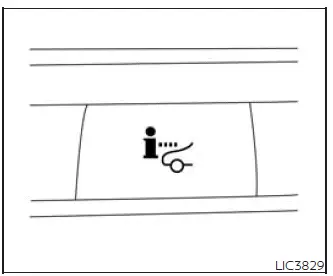
To turn the HUD on, push the HUD switch. When activated, the Head Up Display projects selected driving information into the driver's forward field of view so it can be checked without looking down at the instrument panel.
To turn the HUD off, push the switch again.
If the HUD is turned off, it will remain off even after the Nissan Murano is restarted, so the driver must switch it back on manually when the display is needed again.
The following settings can be changed in the vehicle information display to adjust how the HUD appears and what information it shows:
- Brightness
- Height
- Rotation
- Contents selection
- Navigation
- Driving Assist
- Speed Limit Sign
- Audio
- TEL/SMS
- Reset
NOTE:
- Emergency information may still appear on the HUD even if the display has been turned off.
- If the HUD is turned off, the setting items are grayed out and cannot be changed until the HUD is turned back on.
- When Driving Assist is activated, the HUD may be displayed with the ProPILOT Assist switch on even if the HUD switch itself is turned off.
This product includes the following software.
(1) Software developed by Panasonic Corporation or software developed for Panasonic Corporation.
(2) Third-party software licensed to Panasonic Corporation.
(3) Open source software.
Regarding (3) Open source software, this product includes open source software (OSS), including various software components to which license information applies.
Driver Assistance/Navigation linking
Basic Information
The HUD can display driver assistance and navigation information, allowing key guidance and alerts to appear closer to the driver's normal line of sight while operating the vehicle.
The driver assistance display can show warning situations for the following systems, depending on vehicle equipment and system operation:
- Automatic Emergency Braking (AEB) with Pedestrian Detection
- Lane Departure Warning (LDW)
- Intelligent Forward Collision Warning (IFCW)
- Hands-free warning for vehicles with ProPILOT Assist, if so equipped
- Lane Change Assist indicator for vehicles with ProPILOT Assist 2.1, if so equipped
- Traffic Sign Recognition (TSR)
The navigation system linking display can show route guidance items that help the driver follow the selected route more easily:
- Intersection names
- Arrows indicating turning direction
- Distance to the next intersection
The Audio System linking display can show the following audio information when the related system is in use:
- Songs
- Radio stations
The TEL/SMS linking display can show the following communication information on the HUD:
- Caller's name or phone number
The message linking display can show the following item when the system is available on the Nissan Murano:
- ProPILOT Assist 2.1
Warning Message (if so equipped)
When the following system is operated, a warning message may appear on the HUD to help draw the driver's attention to important system information:
- ProPILOT Assist 2.1
Display brightness
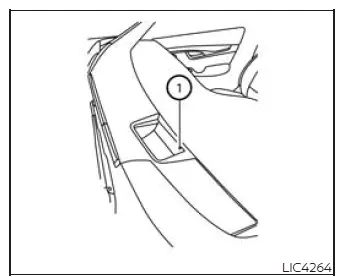
The brightness of the display may be controlled by the navigation system. The brightness is also adjusted automatically according to the exterior ambient lighting brightness, helping the projected image remain visible as surrounding light conditions change.
NOTE:
- The HUD has a built-in sensor 1 that controls the brightness of the displayed image. If the sensor is blocked by an object, the display may become darker and more difficult to see.
- Do not apply strong light directly to the sensor of the Head-Up Display. Doing so may interfere with proper operation and could cause a malfunction.
See also:
Head restraints (3rd row)
WARNING
Head restraints supplement the other vehicle
safety systems. They may provide
additional protection against injury in certain
rear end collisions. Adjust the head
restraints properly, as ...
Basic information
WARNING
Radio waves may interfere with certain electronic medical devices. Anyone who uses a pacemaker or another
implanted medical device should contact the device manufacturer before usin ...
Cruise control operations
The cruise control allows driving at a speed between
25 - 89 MPH (40 - 144 km/h) without
keeping your foot on the accelerator pedal.
To turn on the cruise control, push the
ON·OFF switch on. Th ...