
How to switch the display
With the vehicle switched ON, press the CAMERA button or move the shift position to R (Reverse) to activate the Intelligent Around View Monitor. The system then presents the available camera images on the touch-screen display to assist with low-speed maneuvering and parking.
The Intelligent Around View Monitor provides different split-screen combinations according to the current shift position. Press the CAMERA button repeatedly to cycle through the views that are available for the selected driving mode.
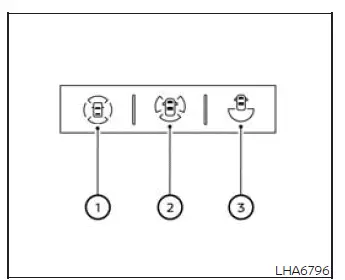
R (Reverse) position
When the shift position is set to R (Reverse), the following camera views are available:
- Rear view combined with the bird's-eye view, providing an image behind the vehicle together with an overhead representation of the surrounding area.
- Rear view combined with the front-side view, allowing the driver to check the area behind the vehicle and the space near the front passenger's side.
- Rear-wide view, which displays a broader field of vision behind the Nissan Murano.
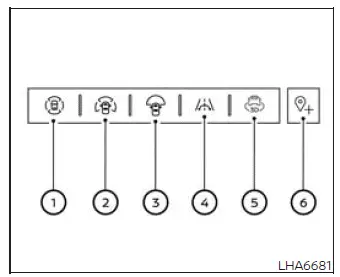
P (Park) or D (Drive) position
When the shift position is set to P (Park) or D (Drive), the following views can be selected:
- Front view combined with the bird's-eye view.
- Front view combined with the front-side view.*
- Front-wide view.*
- Invisible hood view, which provides a generated perspective of the road surface beneath the front portion of the vehicle.
- 3D view. The 3D view is not available while the shift position is set to R (Reverse).
To open the 3D view, touch the "3D" key icon on the touch-screen display. This view does not appear automatically when cycling through the standard camera images.
- Saved Location, which is used for the automatic front-wide view pop-up at a previously stored location.
The Saved Location function is available only when the shift position is set to P (Park).
*: The appearance of the view-selection icon changes when the shift position is set to R (Reverse).
The display will leave the Intelligent Around View Monitor screen under any of the following conditions:
- The shift position is set to D (Drive) and the vehicle speed rises above approximately 12 mph (20 km/h).
- Another menu, function, or screen is selected on the touch-screen display.
- Approximately 3 minutes pass without any operation being performed.
Adjusting the screen
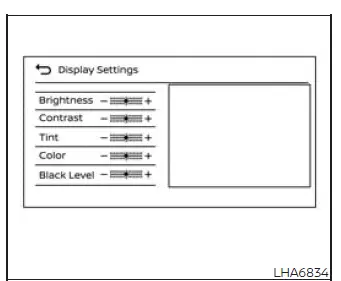
1. From the main menu screen, touch the Settings "
 " key.
2. Touch the "Vehicle" key to open the available vehicle-related settings.
3. Touch the "Camera" key to access the Intelligent Around View Monitor options.
4. Touch the "Display Settings" key.
5. Select the required setting and adjust it by touching the "+" or "-" key on the touch-screen display until the preferred level is reached.
NOTE: Do not change the Intelligent Around View Monitor display settings while the vehicle is moving. Stop the Nissan Murano in a safe location and make sure the parking brake is firmly applied before making any adjustment.
Setting the Vehicle Color
The color of the vehicle image displayed in the bird's-eye view and 3D view can be changed. This adjustment affects the on-screen vehicle representation used by the camera system.
To select a different vehicle color, complete the following steps:
1. Press the CAMERA button to open the camera display.
2. Select an available camera view while the shift position is not set to R (Reverse).
3. Touch the "
 " key on the touch-screen display.
4. Touch the "Vehicle Color" key to open the available color choices.
5. Touch the desired color to apply it to the vehicle image shown in the bird's-eye and 3D views.
Camera Widgets
Camera-related widgets can be placed on the home menu screen of the touch-screen display, allowing selected camera functions to be accessed from the customized menu layout. Refer to the separate NissanConnect Owner's Manual, if so equipped, for additional information about adding, arranging, and customizing widgets on the home menu screen.
See also:
iPod®* player operation without Navigation System (if so equipped)
Connecting iPod®
CAUTION
● Depending on size and shape of the
iPod® and iPod® cable, the console lid
may not fully close. Do not force console
lid closed as this may damage the
iPod® ...
Lights
Basic information
Headlight assembly
Map lights
Door mirror turn signal lights (if so equipped)
Personal lights
Front combination light assembly
High-mounted stop light
...
Warning signals
To help prevent the vehicle from moving unexpectedly
by erroneous operation of the Intelligent
Key or to help prevent the vehicle from being
stolen, a chime or buzzer sounds from inside and
outsid ...